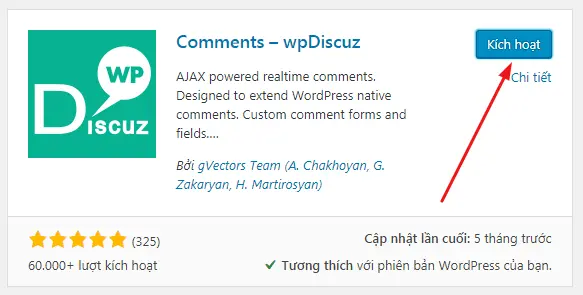
Đầu tiên bạn hãy cài đặt plugin WooCommerce
Thêm sửa xóa bộ lọc sản phẩm WooCommerce, tôi sẽ hướng dẫn bạn thêm xóa hay chỉnh sửa các option trong bộ lọc mặc định trong trang sản phẩm của WooCommerce thông qua các hook có sẵn.
1. Xóa option trong bộ lọc sản phẩm WooCommerce
Sử dụng hook woocommerce_catalog_orderby để xóa item “Thứ tự mặc định” hay “default sorting” , ví dụ như chèn đoạn code sau vào functions.php sau:
add_filter( ‘woocommerce_catalog_orderby’, ‘devwk_remove_default_sorting_options’ );
function devwk_remove_default_sorting_options( $options ){
unset( $options[ ‘popularity’ ] );
//unset( $options[ ‘menu_order’ ] );
//unset( $options[ ‘rating’ ] );
//unset( $options[ ‘date’ ] );
//unset( $options[ ‘price’ ] );
//unset( $options[ ‘price-desc’ ] );return $options;
}
Trong đó:
- menu_order: Thứ tự mặc định, hiển thị sản phẩm theo giá trị mặc định tring setting, nếu không setting sẽ mặc định là theo bảng chữ cái
- popularity : thứ tự theo mức độ phổ biến
- rating : theo thứ tự điểm đánh giá.
- date : theo thứ tự mới nhất
- price : theo thứ tự giá thấp đến cao
- price-desc: theo thứ tự giá từ cao đến thấp
2. Đổi tên option trong bộ lọc sản phẩm WooCommerce
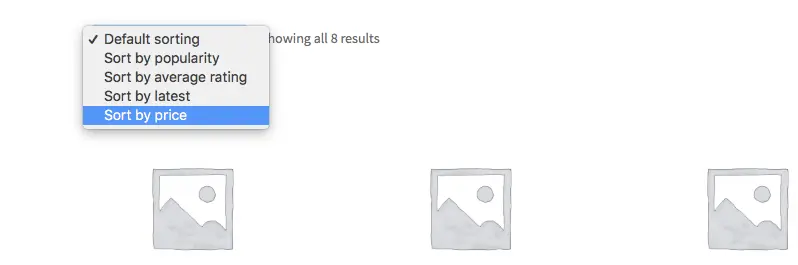
Để đổi tên hay label của item trong bộ lọc chúng ta vẫn sử dụng hook woocommerce_catalog_orderby, ví dụ như xóa bộ lọc theo thứ tự giá từ cao đến thấp và đổi tên bộ lọc giá từ thấp đến cao bằng lọc theo giá “Sort by price” như sau.
add_filter( ‘woocommerce_catalog_orderby’, ‘devwk_rename_default_sorting_options’ );
function devwk_rename_default_sorting_options( $options ){
unset( $options[ ‘price-desc’ ] ); // remove
$options[ ‘price’ ] = ‘Sort by price’; // renamereturn $options;
}
Kết quả
3. Thay đổi vị trí option trong bộ lọc sản phẩm WooCommerce
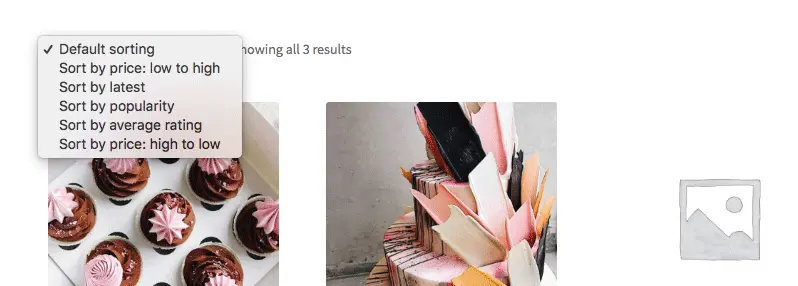
add_filter( ‘woocommerce_catalog_orderby’, ‘devwk_change_sorting_options_order’, 5 );function devwk_change_sorting_options_order( $options ){$options = array(‘menu_order’ => __( ‘Default sorting’, ‘woocommerce’ ), // you can change the order of this element too‘price’ => __( ‘Sort by price: low to high’, ‘woocommerce’ ), // I need sorting by price to be the first‘date’ => __( ‘Sort by latest’, ‘woocommerce’ ), // Let’s make “Sort by latest” the second one// and leave everything else without changes‘popularity’ => __( ‘Sort by popularity’, ‘woocommerce’ ),‘rating’ => ‘Sort by average rating’, // __() is not necessary‘price-desc’ => __( ‘Sort by price: high to low’, ‘woocommerce’ ),);return $options;}
Thứ tự mới sẽ thay đổi theo thứ tự ở trên
4. Tạo một option trong bộ lọc sản phẩm WooCommerce
Bước 1: Tạo option “Sort alphabetically” và “Show products in stock first” bằng cách thêm đoạn code vào functions.php
add_filter( ‘woocommerce_catalog_orderby’, ‘devwk_add_custom_sorting_options’ );function devwk_add_custom_sorting_options( $options ){$options[‘title’] = ‘Sort alphabetically’;$options[‘in-stock’] = ‘Show products in stock first’;return $options;}
Bước 2: Sử dụng filter woocommerce_get_catalog_ordering_args để xử lý khi option mới tạo được chọn
add_filter( ‘woocommerce_get_catalog_ordering_args’, ‘devwk_custom_product_sorting’ );function devwk_custom_product_sorting( $args ) {// Sort alphabeticallyif ( isset( $_GET[‘orderby’] ) && ‘title’ === $_GET[‘orderby’] ) {$args[‘orderby’] = ‘title’;$args[‘order’] = ‘asc’;}// Show products in stock firstif( isset( $_GET[‘orderby’] ) && ‘in-stock’ === $_GET[‘orderby’] ) {$args[‘meta_key’] = ‘_stock_status’;$args[‘orderby’] = array( ‘meta_value’ => ‘ASC’ );}return $args;}
5. Xóa bỏ bộ lọc sản phẩm WooCommerce
Cách 1: Sao chép file templates/loop/orderby.php trong plugin WooCommerce vào theme của bạn và để trống nó.
Cách 2: Sử dụng hook woocommerce_catalog_ordering bằng cách chèn code vào functions.php như sau
remove_action( ‘woocommerce_before_shop_loop’, ‘woocommerce_catalog_ordering’, 30 );
6. Lời kết
Việc thêm, sửa, xóa bộ lọc sản phẩm trong WooCommerce đóng vai trò quan trọng giúp tối ưu trải nghiệm mua sắm và tăng tỷ lệ chuyển đổi cho website. Khi cấu hình bộ lọc hợp lý, khách hàng có thể nhanh chóng tìm đúng sản phẩm họ cần, từ đó giảm thời gian tìm kiếm và tăng mức độ hài lòng. Hãy thường xuyên kiểm tra, cập nhật và tùy chỉnh các bộ lọc để phù hợp với danh mục sản phẩm thực tế, giúp cửa hàng online của bạn hoạt động hiệu quả và chuyên nghiệp hơn.
Hãy xem thêm nhiều mẹo hữu ích tại đây!